
A WordPress website can look perfectly normal while small maintenance problems build in the background. A plugin may be several versions behind, a backup job may have stopped, a contact form may no longer deliver messages, or an old administrator account may still have access.
For a small business, those problems are more than technical housekeeping. Your website may be generating leads, answering customer questions, supporting sales, collecting bookings or establishing trust before a prospect ever contacts you. Regular maintenance helps protect that role.
This guide gives you a practical routine for keeping an existing WordPress website current, recoverable and useful. It is designed to help you understand what to check, how often to check it, and when a task has moved beyond routine maintenance.
Why WordPress maintenance matters for a small business
WordPress is built from several moving parts: WordPress core, a theme, plugins, hosting, a database, media files, forms, user accounts and third-party integrations. Each part can change independently. That flexibility is one of WordPress's strengths, but it also means a website benefits from an owner or support team who regularly checks that the pieces still work together.
Maintenance helps reduce avoidable risk. It can reveal expired integrations, outdated software, broken forms, slow pages and access that should have been removed. It also improves recovery readiness because a backup is useful only when it exists, is recent enough, and can actually be restored.
A practical WordPress maintenance schedule
Not every task needs to be done every day. The right frequency depends on how active and important your site is. A brochure site that changes a few times per year may need a different rhythm from an ecommerce, membership or lead-generation site.
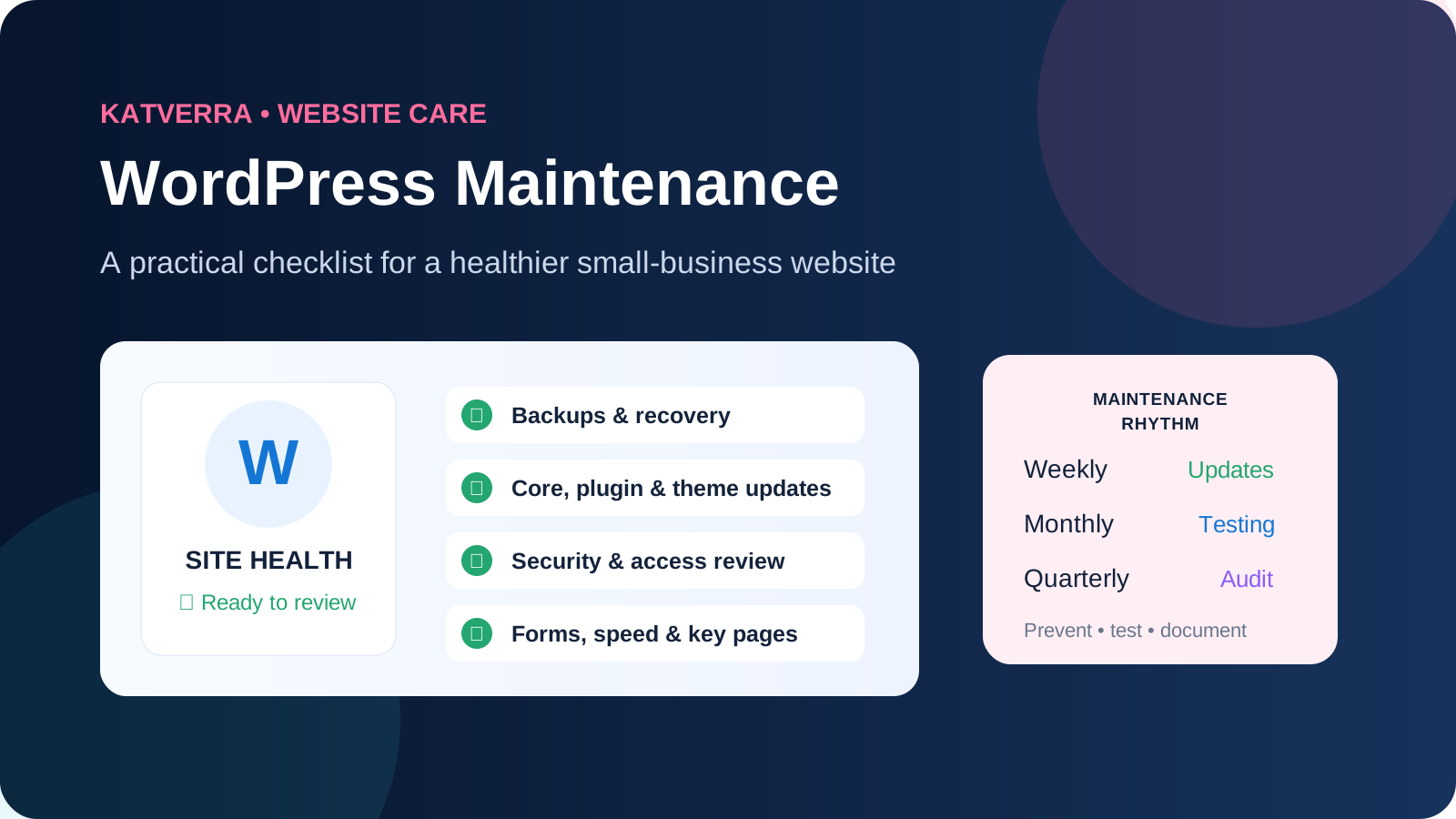
- Weekly: review updates, backup status, site availability and visible errors.
- Monthly: test forms and conversion paths, review security basics, performance, broken links and important business information.
- Quarterly: audit plugins and themes, users and permissions, analytics/search health, database housekeeping and account ownership.
- Before a campaign or launch: test the landing page, form, checkout or booking flow, tracking and mobile experience.
- After a major change: retest important pages and functions instead of assuming the change affected only one screen.
Weekly WordPress maintenance checklist
1. Review WordPress, plugin and theme updates
Open the WordPress update screen and identify what is waiting. Do not treat every update as an automatic click. Review the component, whether it is actively maintained, and whether the change could affect an important feature. Before higher-risk updates, confirm that you have a suitable recent backup and a recovery path.
After updating, inspect the homepage, important service pages, navigation, forms and any checkout, booking or account functionality. A successful update message does not prove that every front-end feature still behaves correctly.
2. Confirm backups are actually running
A backup system should answer three questions: what is being backed up, where is it stored, and how would it be restored? Review the latest successful backup and any failure notices. If every copy is stored only on the same server as the website, a server-level problem could affect both the live site and its backup.
For an important business website, periodically verify that the recovery process is understood. You do not need to restore the live site merely to test it; a staging or controlled recovery test may be more appropriate.
3. Check availability and obvious errors
Visit the website as a normal visitor, preferably in a private browser window. Open the homepage and your highest-value pages. Look for server errors, missing images, broken styling, warning messages, unexpected redirects or sections that no longer load.
Monthly WordPress maintenance checklist
4. Test forms and conversion paths from end to end
A contact form can display a success message even when the email never reaches the business. Submit a real test and confirm that it arrives at the correct inbox. If you use booking, checkout, newsletter, quote-request or account functions, test the full path that matters to a customer.
Also check automated confirmation emails and thank-you pages where applicable. These are easy to overlook because staff members usually see the website from the admin side rather than completing the customer journey.
5. Review security and user access
Review administrator accounts, suspicious login activity, security warnings and software that is no longer supported. Remove accounts belonging to former staff, contractors or agencies when they no longer require access. Give current users only the permissions necessary for their role.
Use strong, unique passwords and multi-factor authentication where your setup supports it. Maintenance can reduce avoidable exposure, but no maintenance provider can responsibly promise that a website will never be attacked or compromised.
6. Check website performance and mobile experience
Performance can gradually decline as images, scripts, plugins, fonts and third-party tools accumulate. Revisit your most important pages on both mobile and desktop. Pay attention to slow hero images, layout shifts, delayed menus, heavy embedded tools and anything that makes the visitor wait before they can act.
Do not chase a perfect speed score at the expense of the business. The practical goal is a responsive, stable experience that allows visitors to understand the page and complete the intended action without unnecessary delay.
7. Look for broken links and outdated business information
Check your main navigation, calls to action, contact information, service descriptions, business hours, team information and frequently visited resources. If you changed a page URL, make sure important old links redirect to the appropriate new destination rather than a generic homepage.
8. Review comments, spam and unnecessary clutter
If comments are enabled, clear spam and moderate legitimate submissions. Review old drafts, unused media and temporary content carefully. The objective is not to delete aggressively; it is to keep the administrative environment understandable and reduce forgotten material.
Quarterly WordPress maintenance checklist
9. Audit plugins and themes
Ask whether every installed component is still necessary, supported and actively maintained. Deactivated plugins are still software on the server and may not need to remain installed. Before removing anything, confirm that it is not supporting a hidden feature, shortcode or integration.
10. Review the database and scheduled jobs
Over time, WordPress databases can accumulate revisions, transients and data left behind by old plugins. Database cleanup should be conservative and backed up first. If your website relies on scheduled tasks, confirm that important jobs such as backups, email processing or synchronization are still running as expected.
11. Review analytics and search health
Maintenance is not the same as SEO, but technical problems can affect both users and search engines. Review major changes in traffic, important landing pages and search visibility. Check that key pages remain indexable, canonical URLs are sensible, and redirects still lead visitors to the right destination.
If your business depends on local visibility, maintenance is also a useful time to make sure website contact details still match the business information you intentionally publish elsewhere.
12. Confirm ownership of hosting, domain and critical accounts
Know who controls the domain registrar, hosting account, DNS, SSL certificate, business email and important third-party services. Record renewal responsibilities and recovery methods. A technically healthy website can still become inaccessible if nobody knows who owns the account that controls the domain.
Before updating WordPress: a safer five-step routine
- Review: understand what is changing and whether the component affects a critical function.
- Protect: confirm a usable backup or rollback option.
- Update: apply the agreed update in a controlled way.
- Test: inspect important pages, forms and workflows.
- Document: record what changed and any issue that needs follow-up.
This is especially useful for sites with page builders, ecommerce plugins, membership systems or custom integrations where one update may interact with several other components.
Common maintenance mistakes to avoid
Updating without checking backups. An update is usually routine until a conflict appears. Recovery planning should happen before the problem.
Assuming automatic updates remove the need for testing. Automation can reduce repetitive work, but someone still needs to notice when a form, layout or integration behaves differently.
Installing a plugin for every small problem. More software can mean more dependencies to maintain. Sometimes a configuration change or existing feature is the cleaner solution.
Ignoring old administrator accounts. Access should reflect who currently needs to manage the site.
Treating maintenance as redesign work. Routine care, content updates, custom development and a full redesign are different scopes. Separating them makes expectations clearer.
DIY WordPress maintenance vs professional maintenance
Many small businesses can handle routine checks internally when someone has the time, access and confidence to own the process. A simple brochure website may not need an elaborate maintenance arrangement.
Professional recurring support becomes more useful when the website is important to lead generation, nobody consistently owns maintenance, the site uses many integrations, staff are uncomfortable troubleshooting updates, or the cost of a broken form or page is greater than the cost of preventative care.
If you outsource, ask what the provider actually checks, what is excluded, how backups are handled, what happens when an update causes a problem, and how larger repairs are approved.
When routine maintenance becomes a separate project
Some problems should not be quietly absorbed into a recurring maintenance checklist. A hacked site, major redesign, server migration, extensive custom-code conflict, broken ecommerce system or large accessibility remediation may require a separate project and specialist assessment.
A good maintenance process should identify those situations early and explain the next decision rather than hiding them inside a vague “monthly maintenance” label.
WordPress maintenance FAQ
How often should I update WordPress?
There is no single schedule that fits every site. Review available updates regularly and prioritize security and compatibility. The frequency should reflect how active the website is, what software it uses and how important uninterrupted operation is to the business.
Should I enable automatic plugin updates?
Automatic updates can be useful for selected components, but they do not eliminate the need for backups and post-update testing. High-impact plugins or complex sites may benefit from more controlled updates.
Does WordPress maintenance improve SEO?
Maintenance is not a substitute for SEO strategy or content. However, keeping pages accessible, fast enough, correctly linked and free from obvious technical problems supports a healthier foundation for search visibility.
Can maintenance prevent every hack or outage?
No. Maintenance can reduce avoidable risk and improve recovery readiness, but websites depend on software, hosting, networks and third-party services. No responsible provider can guarantee zero vulnerabilities or zero downtime.
Need someone to own the maintenance routine?
If nobody on your team consistently owns these checks, recurring support may be more practical than waiting until something breaks. KatVerra provides WordPress maintenance services for small businesses covering agreed recurring updates, backup checks, website testing, content support and practical reporting through one managed business-support team.
If your website needs more than maintenance, you can also explore our small business WordPress design service. The right solution depends on whether the site needs ongoing care, targeted repair or a larger redesign.